Main Sales Screen
The majority of the daily activity will take place on the Commerce Sales Screen. From here, the selection of customers, items to sell, adjustments of prices through discounts, sale of gift cards, returns, etc., and the ringing out of all transactions will all be executed on this screen.
Concepts
- Jumpmind Commerce provides a heavily configurable system the will allow a business to set their preferences as to how the POS looks and works for them.
- The top status bar will reflect the current status of the peripheral devices such as the cash drawer, printer and pinpad, and network.
- User access can be authenticated through application security, LDAP or SSO. Can also use a combination for offline mode.
- Once logged in access to certain functions can be authorized by role based security groups so checks can be in place to control specific actions.
- Notifications will appear when certain configured conditions are met - actions needed for orders, cash downs, etc.
Sales Screen
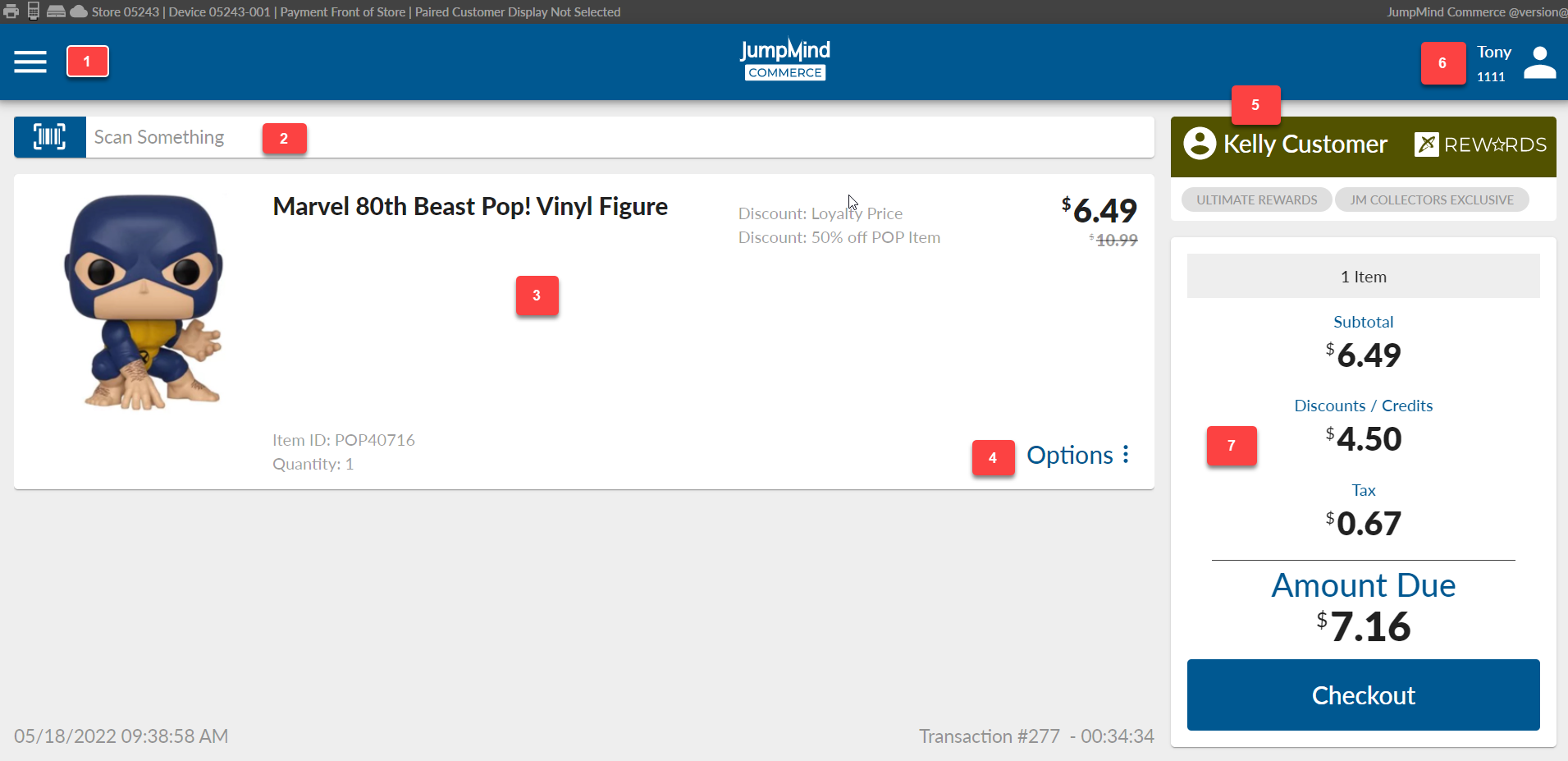
The sales screens allow for transacting sales between a retailer and a customer. The sales screen has the following features:
| Item | Description | Action |
|---|---|---|
| 1 | Transactional Operations ("Hamburger Menu") | Shows menu of actions that can be applied to the entire transaction. |
| 2 | Item Key Search Bar | Provides ability to manually enter an item to the transaction. |
| 3 | Line Item Details Section | Provides essential information regarding the item and options. |
| 4 | Line Item Options Menu | The options that can be applied to a line item in the transaction. |
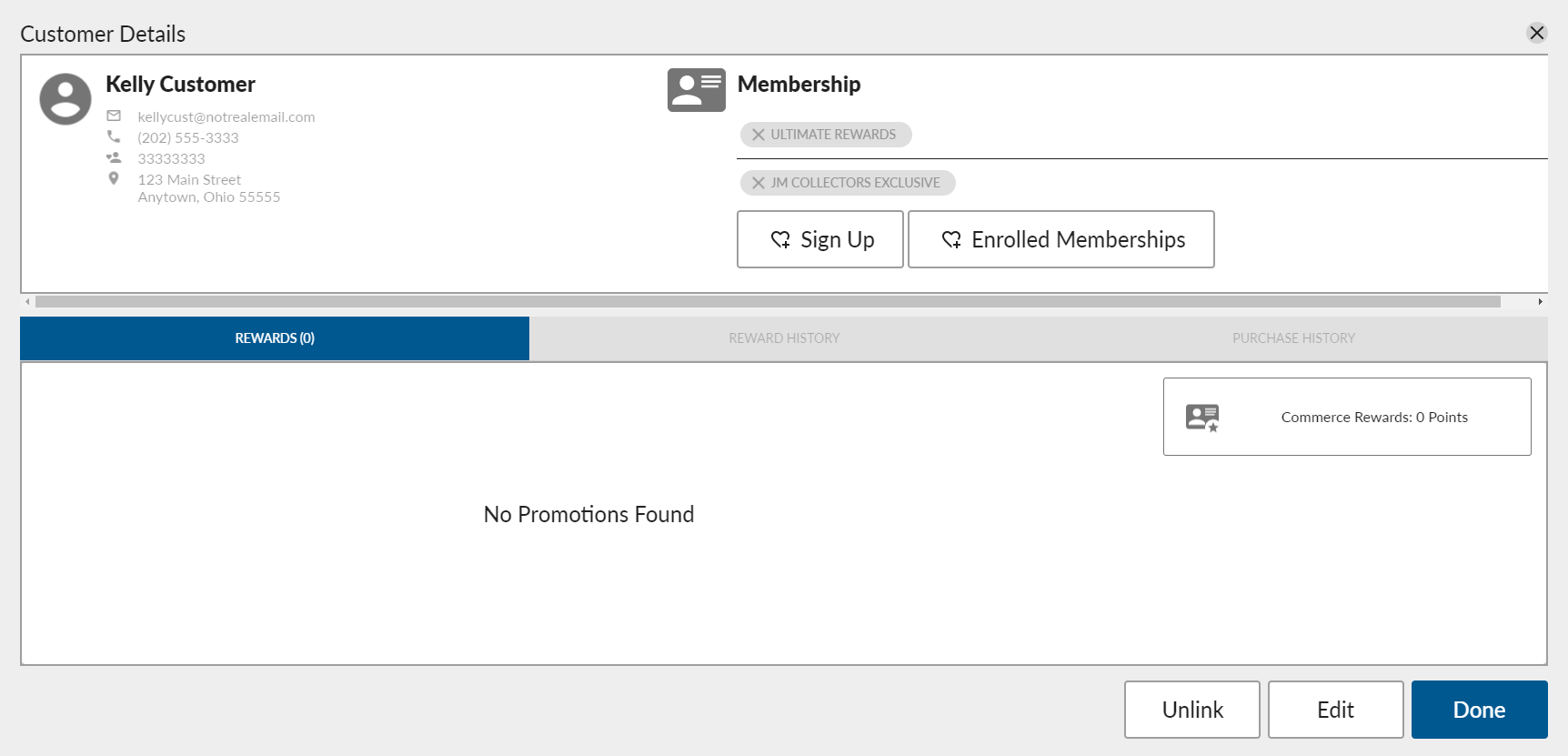
| 5 | Customer Details | Current customer details are accessible by clicking here. |
| 6 | Current User/Cashier Information | Shows the current cashier and offers the ability to logout or change password. |
| 7 | Transaction Summary | Gives the amount summary of the current transaction for subtotal, discount and tax. |
#1 Transaction Operations
The following are the transaction options:
| Icon | Functionality |
|---|---|
 |
Item inquiry allows you to search for an item using key word or product number |
 |
Returns gives you access to the return subsystem, which allows the user to make a customer return |
 |
Gift cards allows you to issue and activate a gift card |
 |
- Discounts allow for the manual application of discounts onto a product or transaction |
 |
At any point during the sell process the user has the capability to suspend the transaction.E.g. customer forgot an item. And this same transaction can be resumed from a new transaction options menu. |
 |
A previously suspended transaction can be resumed |
 |
The user also has the ability to cancel a transaction and it will be abandoned and marked as ORPHANED |
 |
Employee discounts allow for valid employee Ids to discount a transaction |
 |
Tax exemption is permitted when a valid tax exemption code is applied to a transaction. |
 |
Orders gives access to web-order processing and picking |
#2 Item Key Search Bar
 Item keys allows the user to manually enter an item into a transaction.
#3 Line Item Detail Section
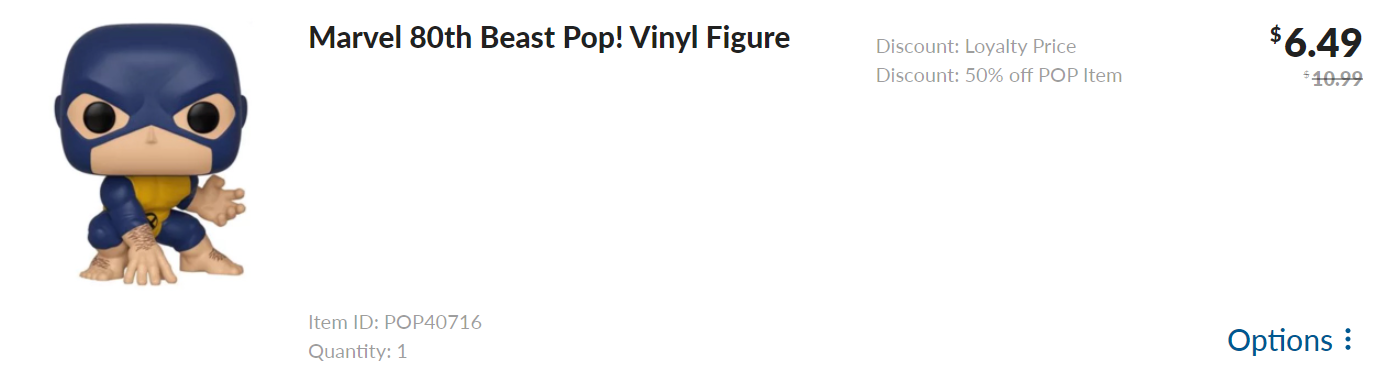
The item detail panel provides essential information about a transaction.
| section | purpose |
|---|---|
| Item Image | Each item has a unique high resolution photo that matches the scanned item |
| Item Description | In bold lettering a description of each item in a given transaction can be read, and referenced. |
| Item Options | Opening a line items options gives you the ability to access a configurable set of features that directly affect the line item. More can be found HERE |
| Quantity | Quantity of the line item |
| Price | Bold numbers reveal fnal price per line item, while grey numbers are pre-discount. |
| Discount | Any applied line item discounts are described |
#4 Line Item Options
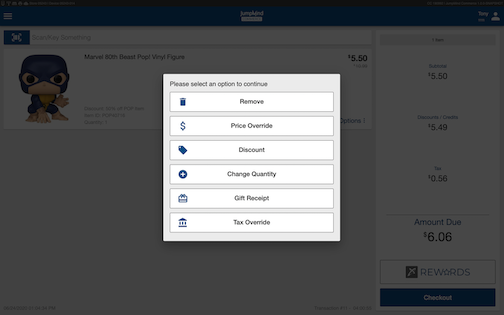
The following actions can be taken on a line item.
| Action | Description |
|---|---|
 |
Removing an item effectively takes the item and item cost out of the transaction, automatically affecting the amount due. |
 |
Discounting a line item is a function that allows the user to manually insert a dollar value or percent that will be turned into a discount for the selected item. |
 |
The change quantity functionality allows for the user to duplicate an already scanned item, as opposed to scanning the same item several times. |
 |
A gift icon appears in the item detail panel for the customers who have requested a gift receipt. |
 |
Overriding a price on a line item gives the user the option to manually change the price of the item |
 |
Overriding the current tax with a different percentage or flat amount. |
#5 Customer Details
The current customer's contact information, membership and sales history are all accessible can be edited here. A customer can be removed from or added to the transaction from this same option.
#6 User information options
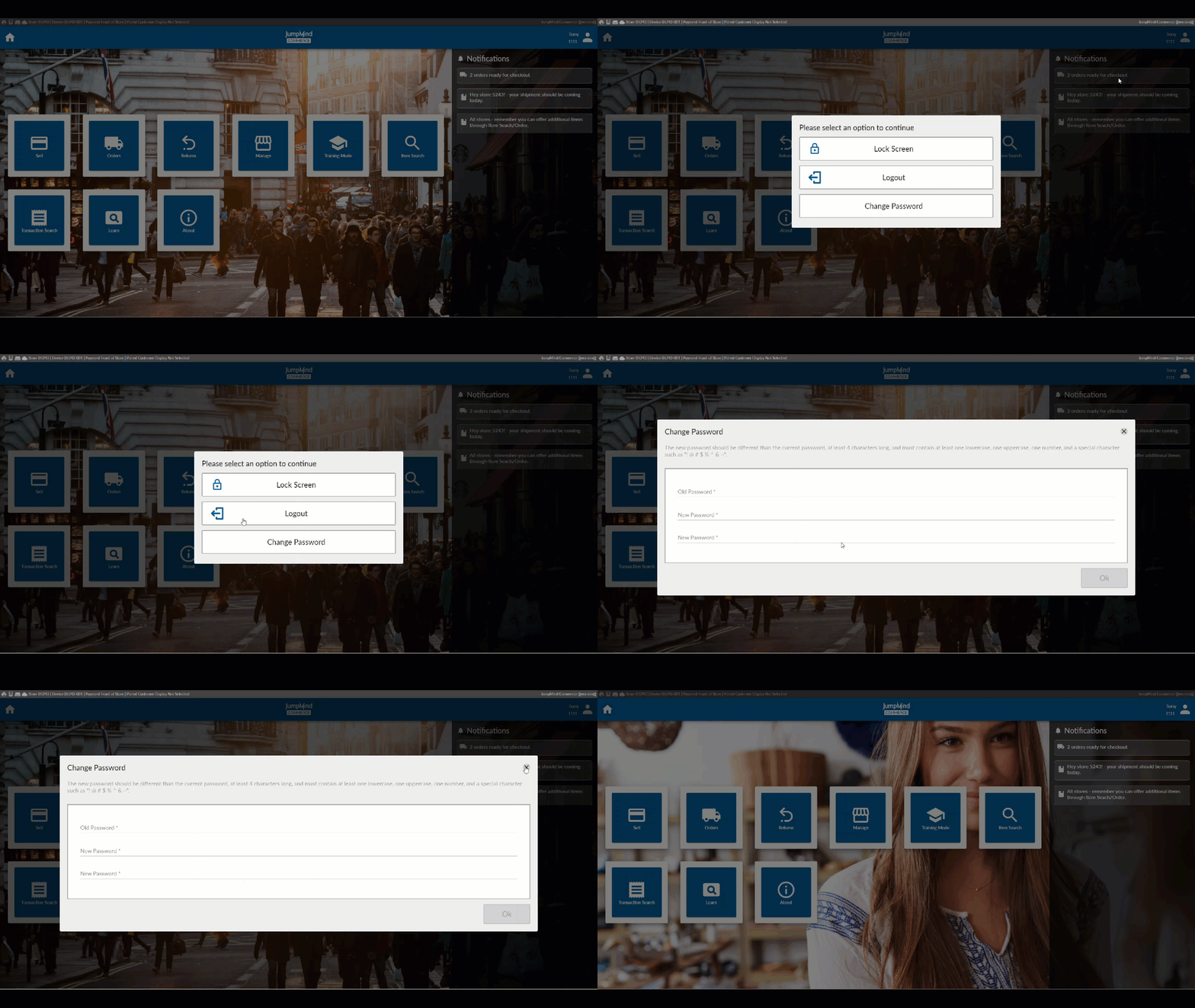
Within User Information you have access to the following functionalities:
| Action | Description |
|---|---|
| Lock Screen | Commerce supports two lock screen functions. A manual lock and an automated, adjustable, time activated lock. Both of which require the user to re-enter their password to continue working. |
| Logout | Logout allows for the user to exit their account after a sale, which allows a new user to sign-in. |
| Change Password | Within the sale functionality a user can change their password |
#7 Transaction Summary
A summary of the current transaction that highlights essential transaction details.
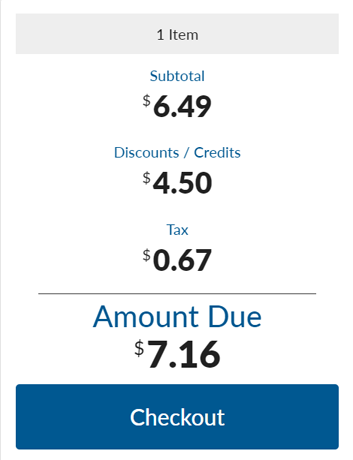
These details include:
| Description | Functionality |
|---|---|
| Item count | Total number of items in the cart |
| Subtotal | The subtotal, or the pre-tax transaction cost, is viewable and automatically calculated for each item added. (promotions calculated for) |
| Discounts / Credits | A running total of all promotions applied to a transaction can be viewed in the transaction summary viewing bar. |
| Tax | The visible tax amount is the summation of the applied transaction tax, accounting for tax overrides and exemptions. |
| Amount Due | The amount due is the all-inclusive cost that the customer owes for their transaction. This includes the subtotal and tax. |
Configuration Options
| Action | Field | Option |
|---|---|---|
| Way to customize the UI representation of the item for display. | sellItemBuilder | defaultSellItemBuilder |
| Way to customize the UI representation of the sale screen. | saleScreenBuilder | defaultSaleScreenBuilder |
| Way to customize the UI representation of the sale screen loyalty part. | saleLoyaltyPartBuilder | defaultSaleLoyaltyPartBuilder |
| Way to customize the UI scan or search bar max length entry | scanOrSearchMaxLength | ex. 70 |
| Way to customize the UI to split the item counts based on the item types | displaySeparateLineItemCounts | True/False |
| Display terms and conditions that the user must accept for loyalty account | loyaltyTermsAndConditionsEnabled | True/False |
| Display email marketing opt in that customer can optionally accept | optIntoEmailMarketingEnabled | True/False |
| Display text marketing opt-in that customer can optionally accept | optIntoTextMarketingEnabled | True/False |
| System will go back to home screen after sale is completed. | endSessionAfterTransaction | True/False |
| System will allow loyalty customers to be added. | loyaltyEnabled | True/False |
| Prompt for loyalty card at beginning of transaction. | promptForLoyalty | True/False |
| Will be used to check if scanned item is a loyalty card. | loyaltyCardPrefix | HTTPS://L4E.US |